
Backing up your photos and files is one of the smartest things you can do to protect your digital memories and important documents. Whether it’s precious family photos, work projects, or personal documents, having a backup means you won’t lose everything if your device fails, gets lost, or is damaged. In this guide, we’ll walk you through why backups matter and explore some practical methods for backing up your files effectively.
Why Backing Up Your Photos and Files Is Important
Your photos and files hold value — sentimental, professional, or practical. Unfortunately, many people don’t realize the risk until it’s too late. Devices can crash, get stolen, or suffer accidental damage. Without a backup, your files could be gone forever. Backups help:
– Prevent data loss
– Protect against hardware failure
– Save time recovering lost files
– Give peace of mind
Understanding the risks and taking a few minutes to set up backups can save you from heartache and frustration down the road.
Common Backup Methods
There are several ways to back up your data. You can use one method or combine a few for extra security.
1. External Hard Drives
Using an external hard drive is a popular way to back up files. These devices are affordable, easy to use, and provide plenty of storage space.
– How to use: Connect the drive to your computer via USB. Then copy your important files or use backup software (like Windows Backup or Time Machine on Mac) to automate the process.
– Pros: Fast transfer speeds, no internet required
– Cons: Physical device can fail or get lost; you must remember to update regularly
2. Cloud Storage Services
Cloud services store your files on remote servers, accessible via the internet. Some popular options include Google Drive, Dropbox, iCloud, and OneDrive.
– How to use: Sign up for a service and upload your photos and files. Many services offer automatic syncing to keep backups updated.
– Pros: Accessible anywhere, automatic backups, no physical device needed
– Cons: Limited free storage; requires internet access; potential privacy concerns
3. USB Flash Drives
Smaller and more portable than hard drives, USB flash drives can be handy for backing up smaller amounts of data.
– How to use: Plug into your computer and drag files to the drive.
– Pros: Portable, inexpensive
– Cons: Limited storage; easy to lose; not ideal for large backups
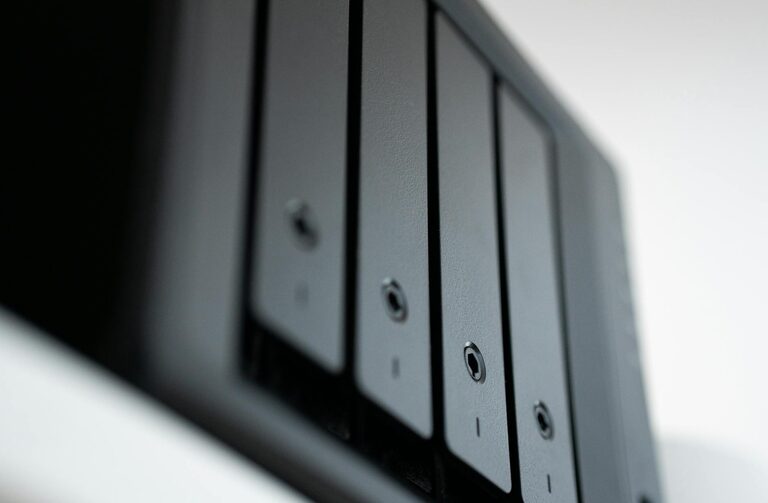
4. Network Attached Storage (NAS)
A NAS device is a storage device connected to your home network, accessible by multiple devices.
– How to use: Connect the NAS to your router and set up backup software to automate file copies.
– Pros: Large capacity, accessible by all devices on the network, can be set to perform automatic backups
– Cons: More expensive; requires some technical setup
Best Practices for Backing Up Your Photos and Files
To get the most benefit from your backups, follow these tips:
1. Follow the 3-2-1 Rule
The 3-2-1 backup rule is easy to remember and highly effective:
– Keep 3 copies of your data (1 primary, 2 backups)
– Store the copies on 2 different types of storage media
– Keep 1 copy offsite, such as a cloud service or a backup stored at a different location
2. Automate Your Backups
Manually backing up files is easy to forget. Use automated backup tools or enable cloud syncing features. This keeps backups current with minimal effort.
3. Organize Your Files
Keep your files well-organized in folders and labeled clearly. This will make backups faster and restores easier when needed.
4. Test Your Backups
Occasionally check that your backups work by trying to access a file or restoring some content. This ensures your backups are reliable when you need them.
5. Keep Security in Mind
If you back up sensitive data, consider encrypting your backups or using services with strong security measures. Use strong passwords for cloud accounts and keep software up to date.
Step-by-Step Example: Backing Up Photos to Google Drive
If you want a simple cloud backup, here’s how to back up your photos using Google Drive:
- Sign up or log into your Google account.
- Download and install Google Drive for your computer or use the web interface.
- Create a folder named “Photo Backup” (or another name you prefer).
- Drag and drop your photo folders into the Google Drive folder to upload them.
- Enable “Backup and Sync” if you want Google Drive to automatically update your backup when you add photos.
- Check your Google Drive storage space and consider upgrading if you have large amounts of data.
Conclusion
Backing up your photos and files doesn’t have to be complicated or time-consuming. Using the methods outlined above, you can protect your important data from loss and enjoy peace of mind. Remember to keep multiple copies, automate your backups whenever possible, and occasionally test their reliability. Start your backup plan today — your future self will thank you!
—
By making backups part of your digital routine, you keep your memories, work, and personal documents safe no matter what happens to your devices. Happy backing up!